The generic order notification template sends emails and/or SMS when an order reaches specific statuses. It’s quick to set up and uses dynamic fields (replacement text) to insert order data automatically.
If you need a branded layout, or advanced fields not available in the generic template, choose Design instead. This article only covers Default.
Navigate to Notifications
-
Navigate to Configuration → Notifications.
- Select generic order notification
-
Click New notification.
Message Template Name
Choose a descriptive title, such as “Order Confirmation” or “Delivery Confirmation.”
This name appears in your notifications list.
E-mail and/or SMS
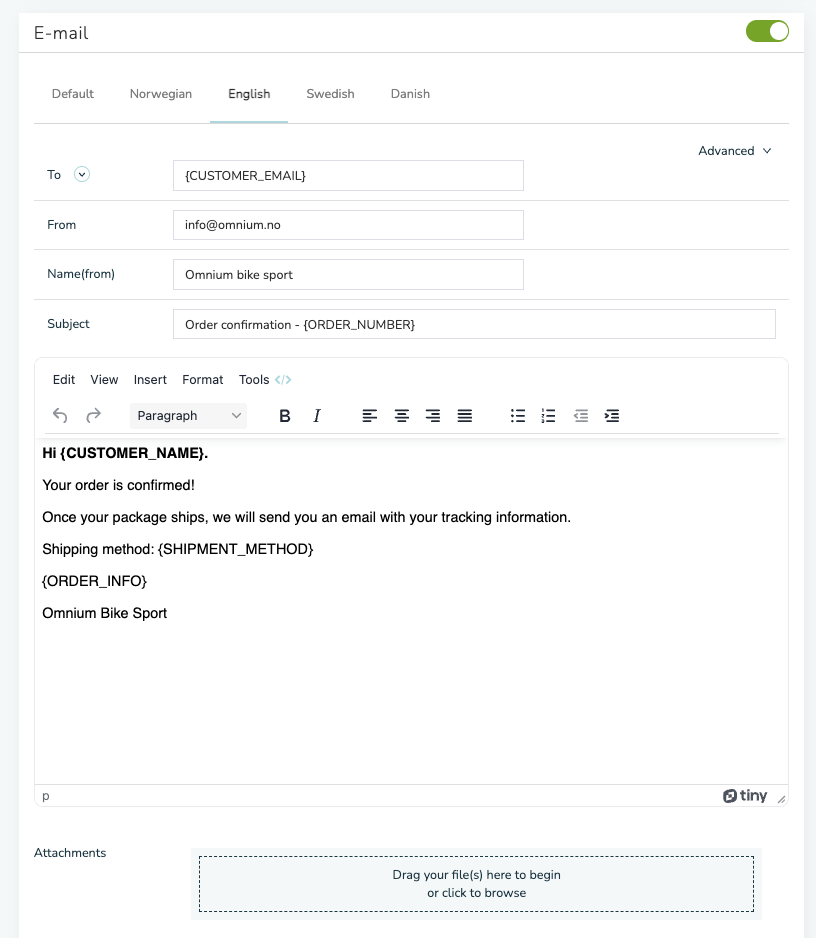
Toggle Email and/or SMS to open the editor(s), then add your content.
-
Email: add a Subject and Body.
-
SMS: write a concise message (SMS has character limits).
You can insert dynamic fields into either channel (see below).
Choose Template Type
You’ll be asked to select a template type:
-
Default (Generic) — simple text-based template with dynamic fields.
-
Design — drag-and-drop layout with extended merge tags and design options.
For this article, choose Default.
Dynamic Fields
Dynamic fields (sometimes called replacement texts) pull in real data when the message is sent.
How to insert:
-
Click into the editor where you want the value.
-
Open Dynamic fields in the right panel.
-
Click a field to insert it (e.g.,
{ORDER_NUMBER},{CUSTOMER_NAME},{SHIPMENT_METHOD})
The editor lists all available fields. If you can’t find what you need, consider the Design option (supports more fields)
Filters
Filters control when the notification is sent.
-
Market (required): select the market(s) where this applies.
-
Order type: specify which order types should trigger it.
-
Shipping type: limit to specific shipping methods (optional).
-
Tags: exclude sending when the order contains specific tags (optional).
Advanced
-
Partial delivery: if enabled, the notification only triggers when the order includes a partial delivery
When to Use “Design” Instead
Choose Design if you need:
-
PDF attachments or print-ready documents.
-
Extended design and merge tags beyond the generic list.
Troubleshooting
-
Nothing sends: check the workflow has a Send notification step on the exact status change, and that Market is set on the notification.
-
Wrong orders receive it: refine Order type, Shipping type, or Tags filters.
-
Missing data in message: confirm you used the correct dynamic field, and that the source order actually has a value for it.
Related to